Install the app
Mammouth lets you use AI anytime, on all your devices.
How to download the Mammouth app?
➡️ The Mammouth app is available directly on mammouth.ai, from your browser.
⚠️ The Mammouth app is not available on the Apple Store. This guide explains how to install it otherwise on all your devices.
🖥️ On MacOS or Windows

In Google Chrome (or Microsoft Edge, Brave, Vivaldi)
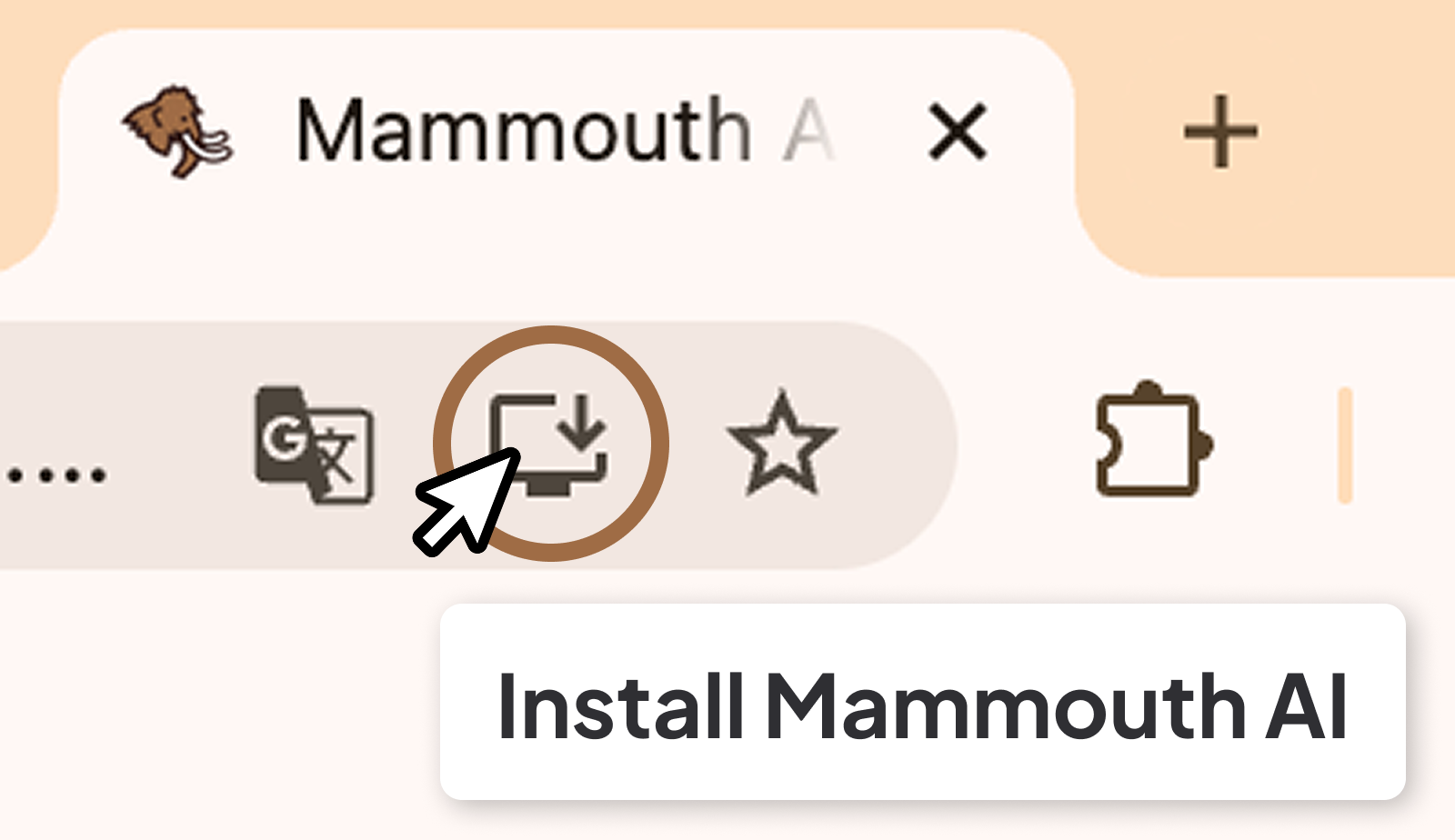
- Go to https://mammouth.ai/app/a/default
- In the browser search bar, click on the "Install Mammouth" icon
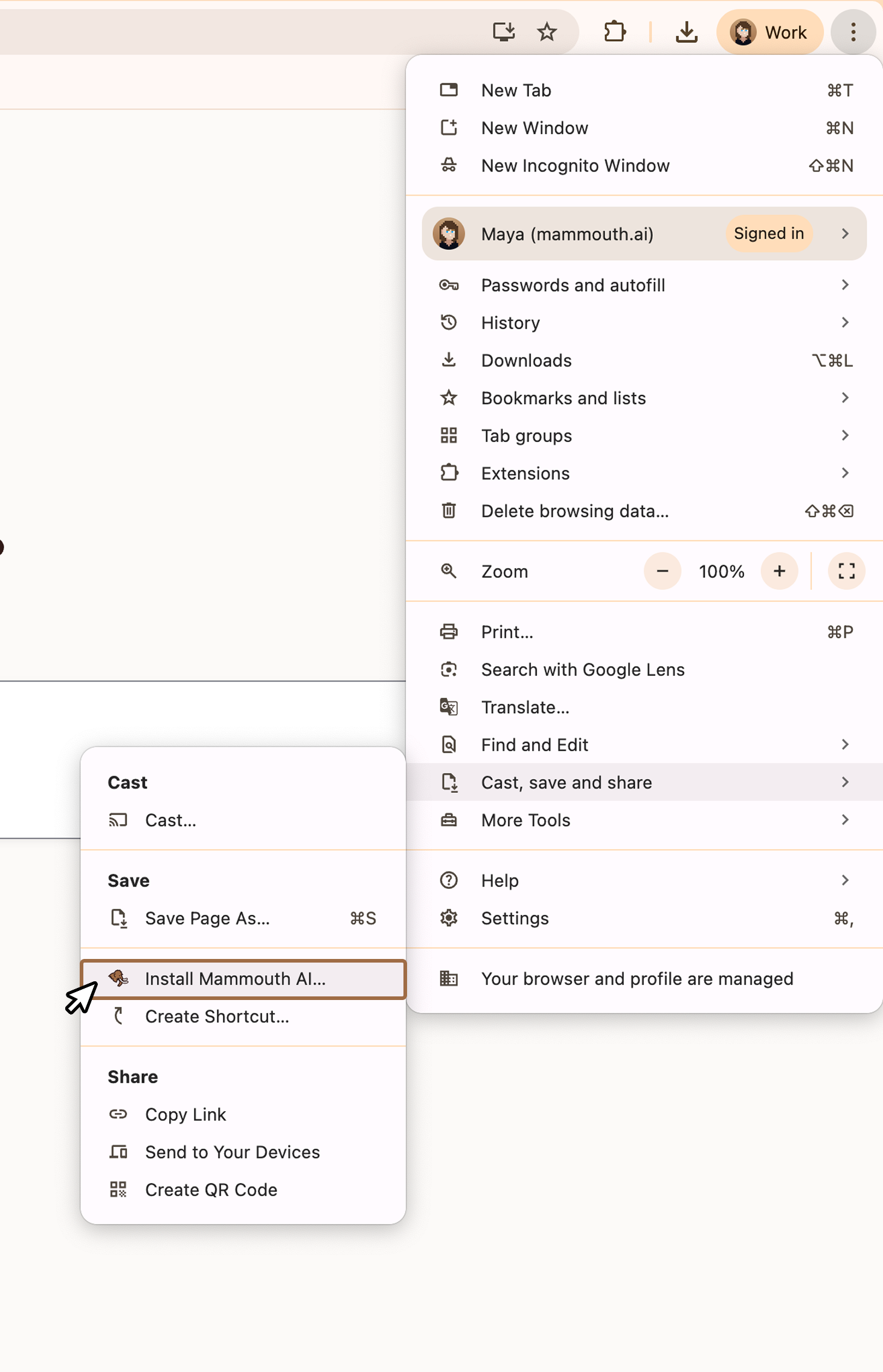
Can't find the icon?
- Go to your browser settings
- Search for "Install app" or
- Select "Cast, save and share"
- Click "Install Mammouth AI"
In Mozilla Firefox (Windows only)
- Go to https://mammouth.ai/app/a/default
- In the browser search bar, click on the "Install Mammouth" icon
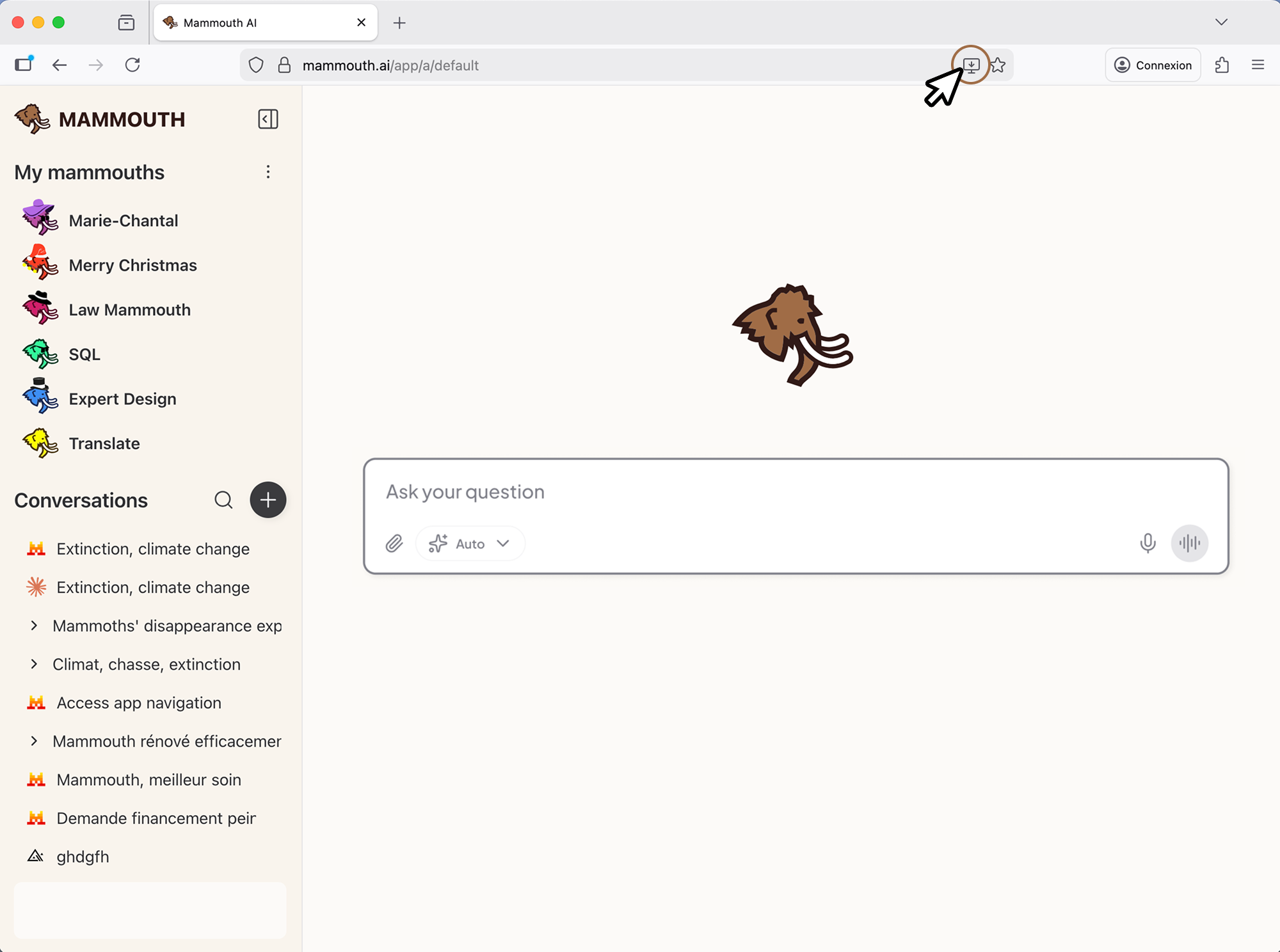
💡 Firefox only supports the Mammouth app on Windows.
If you're using another operating system, you'll need to open another browser to install Mammouth.
In Safari
- Go to https://mammouth.ai/app/a/default
- Click on the share icon
- Select "Add to Dock" and confirm
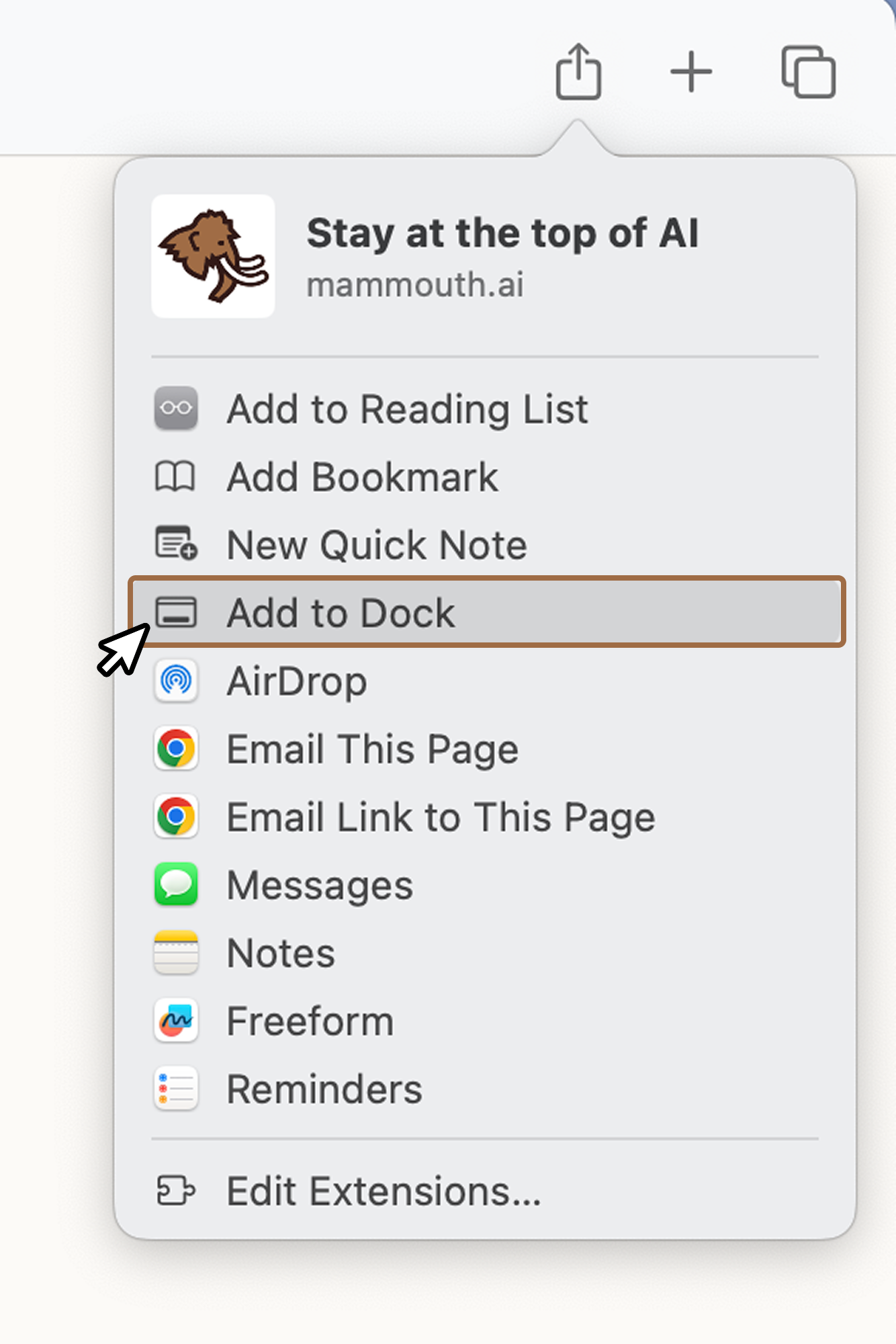
💡 Even though Safari uses the same installation flow as for shortcuts, you're actually installing the same app as on other browsers.
📱 On iPhone or Android
On iPhone
From Safari or Chrome:
- Go to https://mammouth.ai/app/a/default
- Click on the share icon
- Select "Add to Home Screen" and confirm
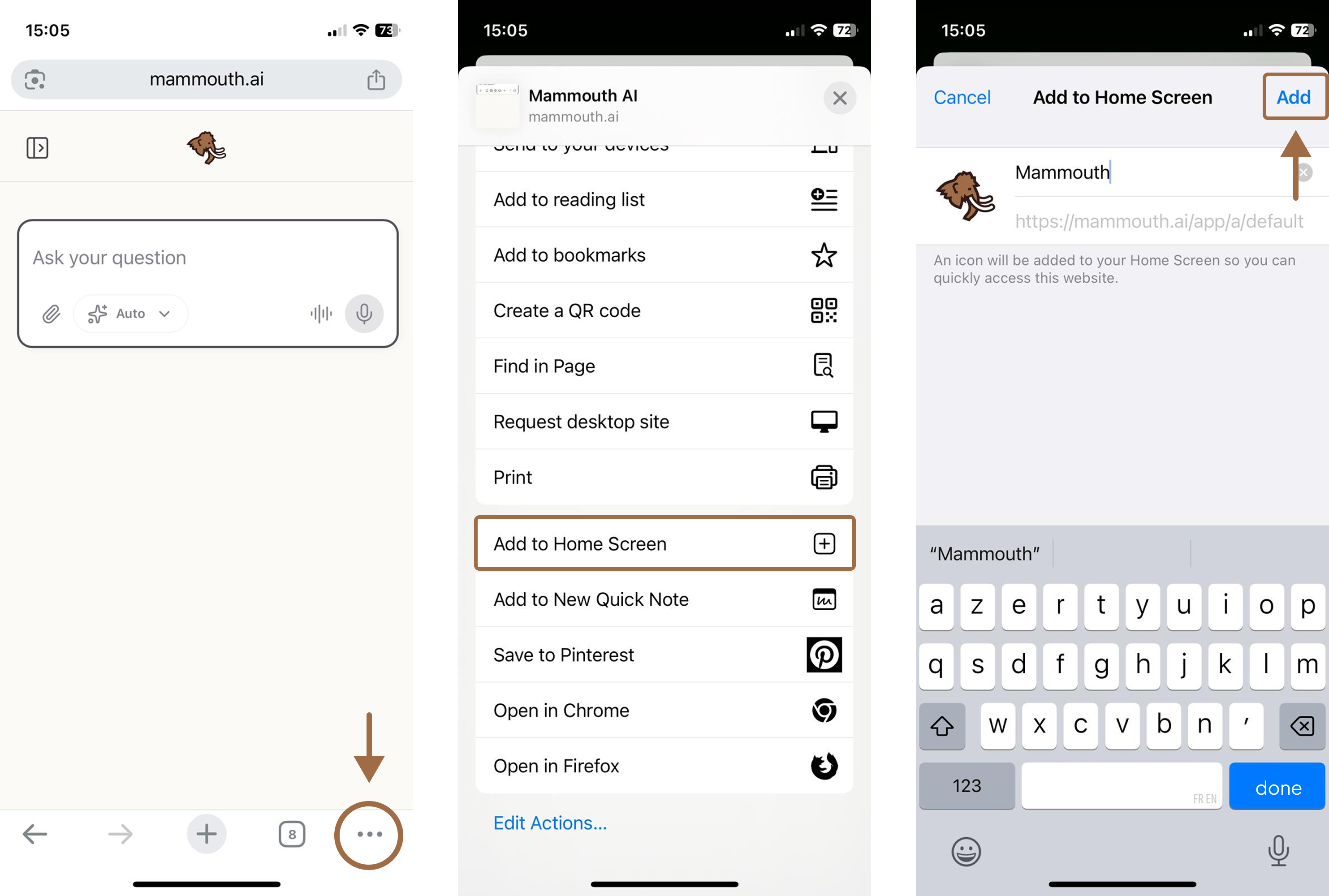
💡 Even though iOS uses the same installation flow as for shortcuts, you're actually installing the same app as on other devices.
On Android
From the Play Store: https://play.google.com/store/apps/details?id=ai.mammouth.application
From Google Chrome:
- Go to https://mammouth.ai/app/a/default
- Open the sidebar menu from the top left
- Click on the settings button at the bottom left
- Select "Install app"
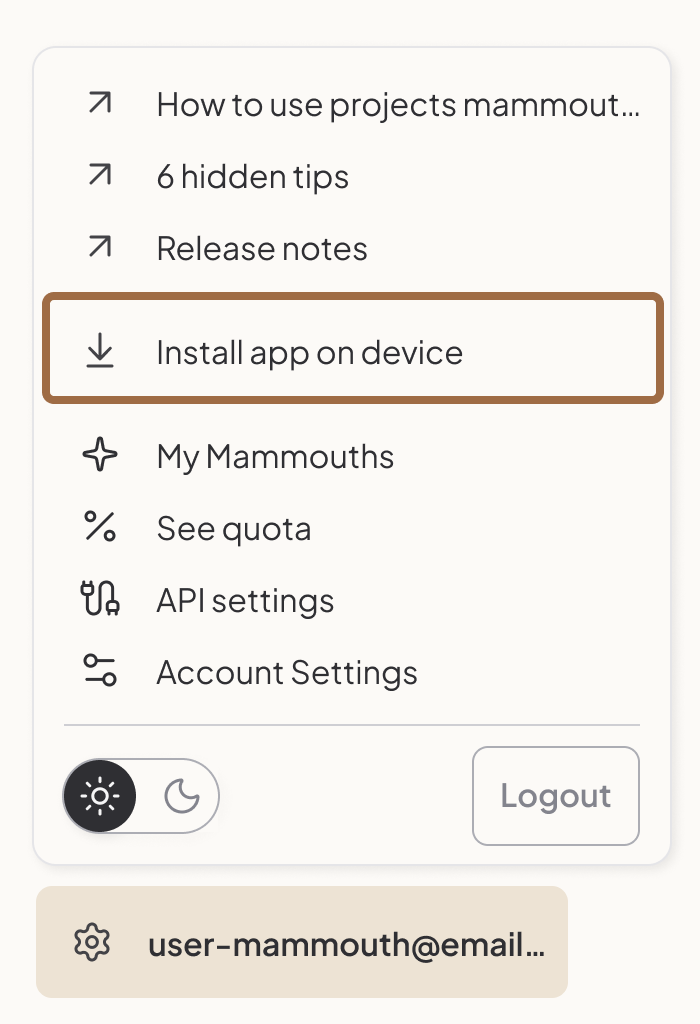
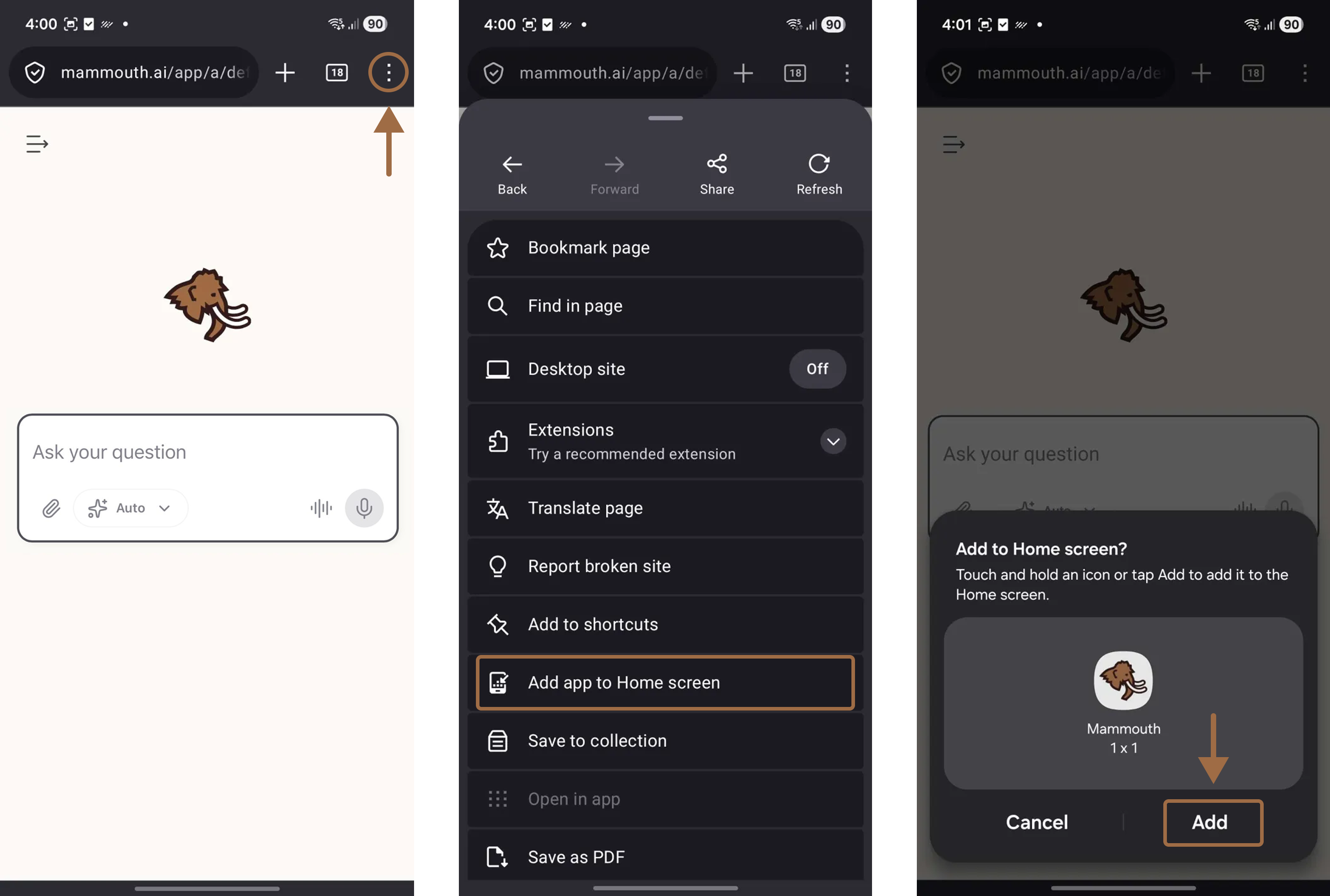
You don't see the Install app button or are using Mozilla Firefox?
There's another method:
- Open your browser settings
- Select "Add to Home screen" and confirm the installation